Before moving BricsCAD to another device, upgrading your system, or removing the software, it is important to deactivate the licence on the current computer. This releases the licence so it can be activated again elsewhere and helps prevent activation errors.
When to deactivate
Make sure you deactivate a license before:
Migrating a license to another computer.
Permanently removing BricsCAD from a computer.
Installing a new hard disk.
Restructuring the disk partitions.
Upgrading the operating system.
Steps to deactivate a license
Launch BricsCAD.
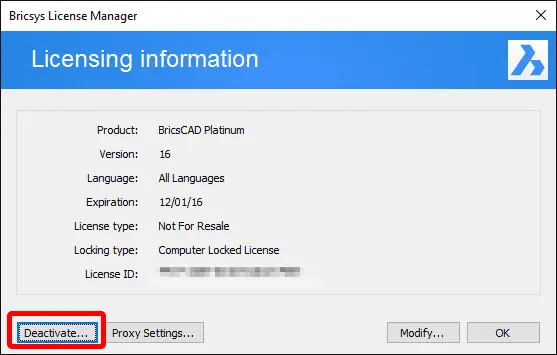
Launch the LICENSEMANAGER command to open the Bricsys License Manager dialog box.
Click the Manage License button to open the License Manager > Licensing Information dialog box.
Click the Deactivate… button.
Click the Yes button to confirmation the license deactivation.
Note:
To deactivate a BricsCAD license, an internet connection is required.
You cannot deactivate network licenses and manually activated single-user licenses.
To automate license deactivation, see the How to automate activation and deactivation of local BricsCAD licenses using the LicTool application article.