
BricsCAD offers powerful tools that help new CAD users and AutoCAD migrators work more efficiently. In this article, we share five tips to speed up your BricsCAD drafting. The focus is on uniquely BricsCAD features – from the Quad cursor to built-in cleanup tools – explained simply for beginners.
The Quad Cursor is an AI-driven context menu that appears right at the cursor, showing commands relevant to whatever you select. It “dynamically” adapts to the entity under the cursor – for example, it shows different options for a line, a block or text. As you work, the Quad also learns your habits: it tracks the commands you use most and then suggests them at the cursor, saving “dozens of clicks on repetitive tasks”. In practice, this means you can access common commands by simply selecting an object and picking the suggested tool from the Quad, rather than typing a command or hunting through menus. Over time the Quad becomes more tailored to your workflows, which makes drafting faster and reduces interruptions.
BricsCAD’s OPTIMIZE tool helps clean up imported or messy geometry to improve drawing accuracy. For example:
Straighten and align: It can snap lines that are almost horizontal or vertical to be perfectly aligned.
Close gaps: It automatically closes tiny gaps between lines, arcs or polylines.
3D cleanup: In 3D mode, OPTIMIZE makes solid faces coplanar and fixes slight misalignments.
You run OPTIMIZE by selecting all or part of the drawing; it highlights changes and shows a preview before you apply them. In short, a few clicks with OPTIMIZE can instantly tidy up small errors (misaligned vertices, stray segments, etc.), saving you time on manual fixes and ensuring your drawing is more accurate.
BricsCAD’s DWGHEALTH command is like a one-stop audit and cleanup for your drawing. It bundles together familiar commands (PURGE, AUDIT, OVERKILL, etc.) into easy routines. You can define a routine of tasks to run (for example: purge unused layers/blocks, audit for errors, remove duplicate entities) and then apply it with one click. DWGHEALTH can run interactively (letting you choose which fixes to accept) or in “express mode” to apply all cleanup automatically. This is especially useful for files from other sources: DWGHEALTH will quickly reduce file size, remove unused styles and layers, purge unreferenced applications, and fix database errors in one go. In effect, it heals the drawing so it works cleaner and loads faster without tedious manual steps.
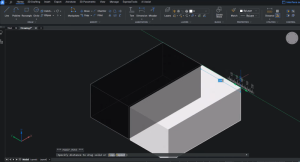
The Manipulator Gizmo (sometimes just “Manipulator”) is a visual widget for moving, rotating, scaling or mirroring objects. When you select a solid or other entity, the Gizmo appears anchored to it. Each arrow on the Gizmo represents an axis: click and drag the X, Y or Z arrow to move the object along that direction. Circular handles allow rotation around an axis, and planar handles let you drag freely in a plane. This means you can reposition or rotate geometry with the mouse alone (no command typing required), cutting down on steps. For example, instead of running the ROTATE command, you just hover over a rotation arc on the Gizmo and drag. The result is an intuitive, command-free way to manipulate 3D models quickly, which is ideal for new users getting used to BricsCAD’s modelling tools.
If you’re used to AutoCAD, you can make BricsCAD feel familiar by customising keyboard shortcuts (aliases). BricsCAD already comes with about 300 predefined aliases – covering all of AutoCAD’s common shortcuts plus extra BricsCAD commands. You can modify or add aliases in the Customise (CUI) dialog under the “Command Aliases” tab. For example:
Use familiar keys: Single letters like L for LINE or C for CIRCLE work just as in AutoCAD.
Edit or add: In the Command Aliases tab you can change existing aliases or add new ones to suit your habits.
Import from AutoCAD: Aliases are stored in the default.pgp file. You can copy your own shortcuts from AutoCAD’s acad.pgp file into BricsCAD’s default.pgp.
Setting aliases or shortcuts helps you launch commands with the keys you already know, saving you from typing full command names. This makes the transition from AutoCAD smoother and speeds up your drafting.
At NORI CAD we offer a BricsCAD Essentials course that covers core 2D/3D techniques. You can also visit the official Bricsys BricsCAD site for tutorials, documentation and a free trial.
For further advice or support in the UK, feel free to explore our technical support page or contact our team — we’re happy to help you get the most out of BricsCAD.